How to Sync Controllers Across Multiple Devices
15 September 2026
Ever been in the middle of switching from your console to your PC and thought, “Why can’t my controller just get it?” We've all been there. You’re trying to get your game on, maybe even trying to bring that same controller over to a friend’s house for a couch co-op session, and syncing your controller becomes a mini boss battle in itself.
Syncing controllers across multiple devices shouldn’t feel like a tech nightmare. In fact, with a little know-how, you can do it smoothly in just a few steps—and I’m here to walk you through exactly how to make that happen.
Whether you're team Xbox, PlayStation, Nintendo, or you’re rolling with a fancy multi-platform wireless controller, this guide’s got you covered.
Why Syncing Your Controller Matters
Let’s be real: the controller is your connection to the game world. If there’s input lag, non-functioning buttons, or worse, it won’t connect at all—you’re not gaming, you’re troubleshooting. Syncing ensures your controller is recognized by the device, buttons work as expected, and your gaming experience is fluid.Plus, with more players hopping across setups—consoles, PCs, mobile devices, even TVs—it just makes sense to use one controller on multiple platforms. It saves money, reduces clutter, and hey, you get that consistent grip and feel you love.
Understanding Controller Connectivity
Before we get our hands dirty, let’s break this down simply.There are two main types of connections:
- Wired (USB) – Plug-and-play. Great for reducing input lag and avoiding battery issues.
- Wireless (Bluetooth or proprietary) – This is where most multi-device syncing comes into play.
It’s also important to understand that some consoles use proprietary wireless signals (like Xbox or PlayStation), which can complicate things a bit. Luckily, there are workarounds—and we'll go there soon.
General Tips Before Syncing
Here’s your pre-sync checklist. Don’t skip it—it’ll save your sanity.1. Check Compatibility – Not all controllers work on all devices. A PS5 DualSense won’t natively sync with an Xbox, and some older controllers need firmware updates.
2. Charge Your Controller – Wireless controllers won’t sync if they’re too low on battery.
3. Disconnect from Other Devices – Controllers often remember the last device they were paired with. Disconnect or turn off Bluetooth on old devices if needed.
4. Firmware Updates – Update your controller using its original platform or a PC tool. This can fix bugs and improve cross-platform compatibility.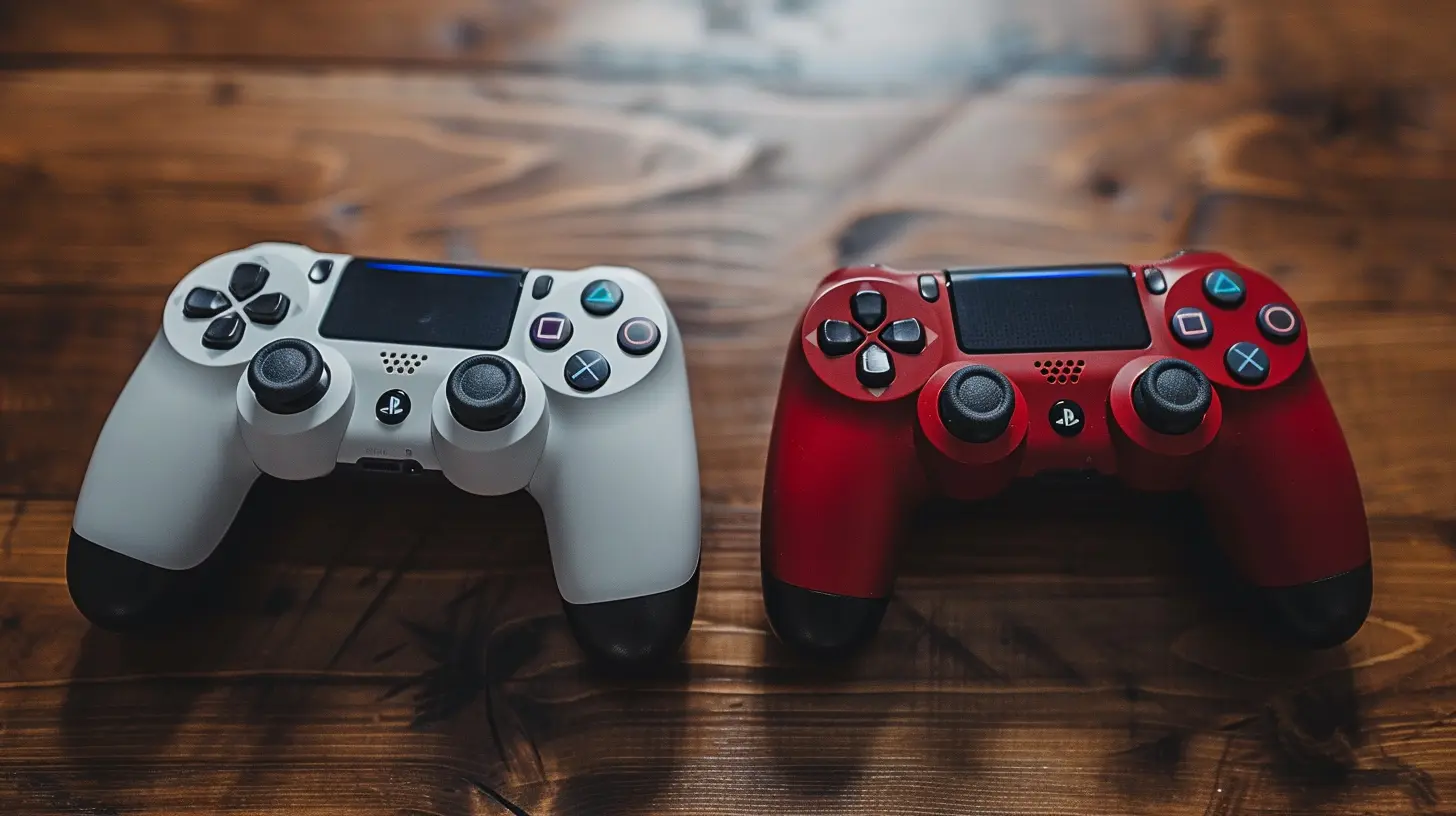
How to Sync an Xbox Controller Across Multiple Devices
To a Windows PC (Bluetooth)
1. Turn on your controller by pressing the Xbox button.2. Hold the sync button until the Xbox logo starts flashing.
3. On your PC, open Settings > Devices > Bluetooth & other devices.
4. Click “Add Bluetooth or other device,” select Bluetooth, and then choose “Xbox Wireless Controller.”
Boom. Synced.
To Android/iOS
1. Follow the same steps above to get the Xbox controller in pairing mode.2. On your phone, turn on Bluetooth and look for “Xbox Wireless Controller.”
3. Tap to pair.
Now you're mobile gaming like a champ.
To Apple TV or Mac
- Apple has added Xbox controller support in recent updates. From your Apple TV or Mac:- Go to Bluetooth settings.
- Put the controller in sync mode.
- Select the controller to connect.
How to Sync a PlayStation Controller Across Devices
DualShock 4 (PS4) or DualSense (PS5) to PC
You can go two ways:- Wired: Connect via USB and Windows will usually auto-detect it.
- Bluetooth:
1. Press and hold the PS Button + Share button until the light bar flashes.
2. On PC, go to Bluetooth settings and click “Add Bluetooth device.”
3. Select “Wireless Controller.”
Note: On PCs, you may need software like DS4Windows for full button mapping and support, especially for the touchpad and motion controls.
To Mobile Devices
The same PS Button + Share method applies. Enable Bluetooth on your phone, find “Wireless Controller,” and tap to connect.Syncing a Nintendo Switch Pro Controller
Nintendo fans, I see you. This controller works surprisingly well on PC and even Android.To PC (Wired or Bluetooth)
- Plug in via USB-C: It’ll work with Steam instantly.- For Bluetooth:
1. Hold the sync button (small circular button on top).
2. Wait for the lights to flash.
3. Connect via the PC’s Bluetooth settings.
To Phone or Tablet
Same idea as above. Use sync mode, then pair via Bluetooth settings.However, keep in mind—very few iOS games support Nintendo controllers natively, but Android’s a bit more forgiving.
How to Sync Multi-Platform Controllers (8BitDo, Backbone, etc.)
Now here’s where things get fun—these controllers are built specifically for device-hoppers.8BitDo Controllers
Most 8BitDo models have a mode switch:- Start + Y = Xbox Mode
- Start + X = Switch Mode
- Start + B = Android Mode
- Start + A = macOS Mode
Hold these combinations while turning it on, and it’ll talk to the appropriate device. Then just use Bluetooth to pair like any other controller.
Don’t forget to check their software for firmware updates—it’s super important for performance.
Backbone One / Razer Kishi
These are mobile-specific. They're basically plug-and-play, but some models (especially the USB-C versions) can be finicky across different Android brands. Keep them updated!Bonus Tip: Use Controller Multipoint Mode (If Available)
Some high-end controllers (like the 8BitDo Ultimate Bluetooth) allow multiple paired devices and switch between them with a button combo.Think of it like Bluetooth earbuds that remember your phone and laptop and switch between them.
If your controller has this:
- Long press a specific button to switch saved devices.
- Avoid re-pairing every time, saving you a ton of hassle.
How to Know If It’s Synced Right
Quick checklist:✅ Buttons respond instantly
✅ No lag or delay
✅ The controller appears correctly in the device’s settings
✅ Compatible games detect the input
Still not working? Try unpairing and repairing. Sometimes a fresh start is all you need.
Common Issues and How to Fix Them
“I can’t find the controller on Bluetooth”→ Make sure it’s actually in pairing mode. Lights should be blinking fast.
“Controller keeps disconnecting”
→ Low battery or too many Bluetooth devices nearby causing interference.
“It works on one device, but not another”
→ Try resetting the controller (usually by holding a hidden button or combo like L1+R1+PS for PlayStations).
“Multiple devices seem to fight for the connection”
→ Turn off Bluetooth on unused devices to avoid interruptions.
Pro Tip: Use a USB Dongle for Seamless Switching
If you're serious about multi-platform gaming, investing in a universal USB dongle (like 8BitDo Wireless USB Adapter or Brook Super Converter) can make life a whole lot simpler.They help bridge controllers across platforms that normally wouldn't talk to each other—while keeping input lag low.
Final Thoughts
Syncing your controller across multiple devices might seem like an overwhelming task at first—but once you’ve done it a couple of times, it’s as easy as pie. It's like learning to drive a car: tricky at first, but soon you won’t even think about it.The real beauty is in the freedom it gives you. One controller. Many devices. No limitations.
With the right gear and a little patience, your controller can become the Swiss Army knife of your gaming setup. So whether you're slaying demons on your PC, racing through Mario Kart on your Switch, or building empires on mobile—your controller's got your back.
Now go ahead and sync like a pro.
all images in this post were generated using AI tools
Category:
Game ControllersAuthor:

Francesca West
Discussion
rate this article
1 comments
Nyxaris McFarland
Great tips for seamless controller syncing!
September 15, 2026 at 4:18 AM
Francesca West
Thanks! I'm glad you found the tips helpful!